


How to manage online reservations for my business
Use the Bookings list to review reservations and manage each booking’s details and status. You need the Booking module and the appropriate access in the selected workspace.
Open Bookings and its list view. You can also use the Bookings list after signing in.
Choose the relevant date and use the available search or filters to find a reservation. Review its guest, time, covers and status before opening it.
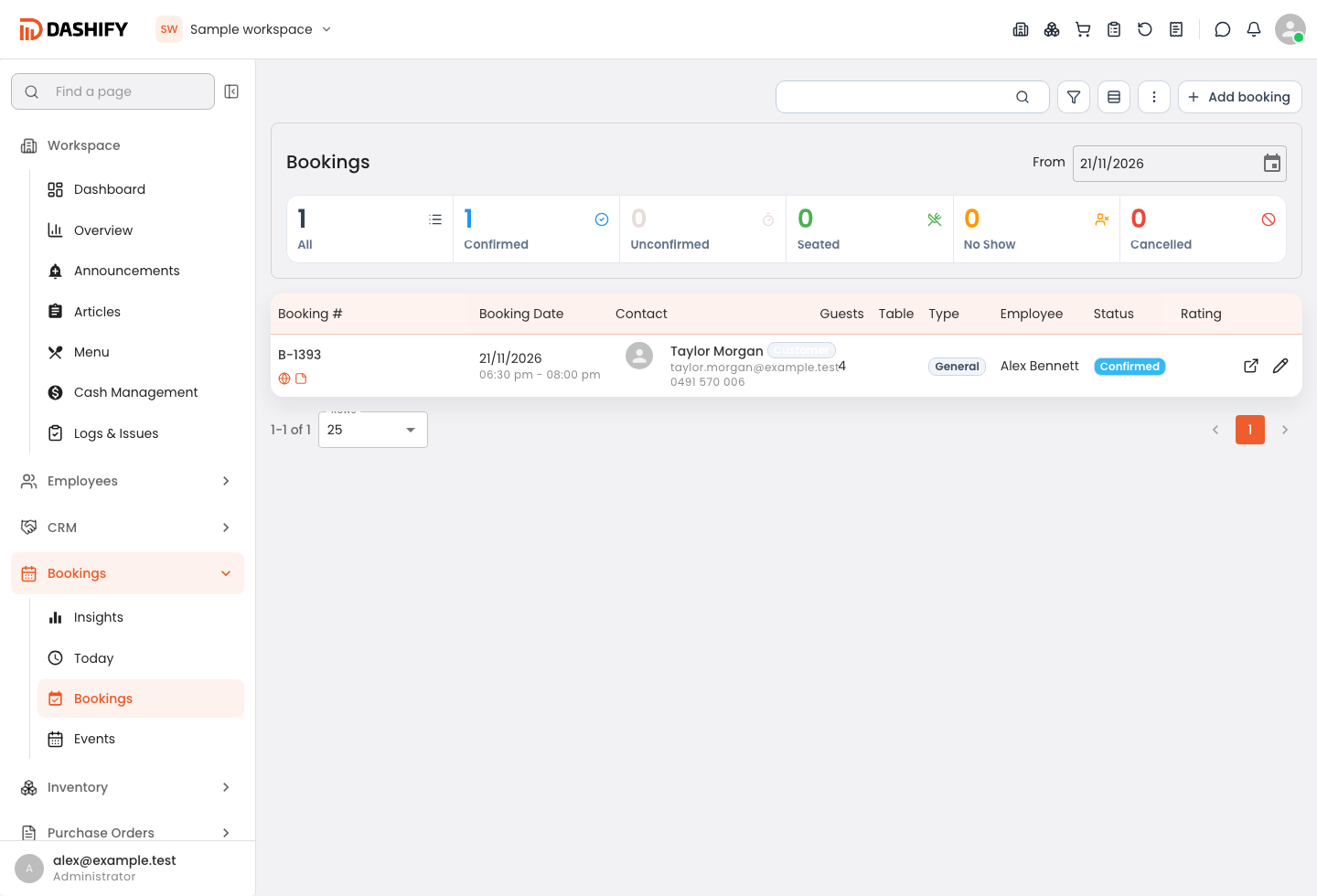
Open the booking to review its details. Use the available edit or status controls only when authorised, then save and check the result. Statuses can include Confirmed, Unconfirmed, Seated, No Show and Cancelled.
To create a reservation yourself, use Add booking, complete the required fields, review the guest details and any email options, then submit.
Cancellation and confirmation-email actions can affect the guest, so review their recipient and options carefully. Configure booking rules under Settings > Booking and individual events under Bookings > Events; these are separate from managing a reservation.
Find and update a booking during service
A guest calls to change their arrival time. The host opens Bookings, searches the relevant date and checks the guest, time and covers. If authorised, they update the reservation and recheck the saved details.